Installing Kubernetes on Ubuntu
This is not all my own work in any way - but relies on previous materials.
I started with an Ubuntu VM running 4GB ram and 3 cores with 80GB disk
The Kubelet service will not start (apparently) unless swap has been disabled on any Kube master or node. I'm sure there's a good reason and it may be overall performance of a large subcapacity system
Sudo swapoff -a and comment out swap in /etc/fstabwith a #
tar -zxvf helm-v2.8.2-linux-amd64.tar.gz
chmod +x linux-amd64/helm
sudo mv spt-get update && sudo apt-get install -y apt-transport-https
sudo apt install docker.io
sudo systemctl start docker
sudo systemctl enable docker
sudo curl -s https://packages.cloud.google.com/apt/doc/apt-key.gpg | sudo apt-key add
sudo touch /etc/apt/sources.list.d/kubernetes.list (edit this file with vi and add 'deb http://apt.kubernetes.io/ kubernetes-xenial main')
sudo apt-get update
sudo apt-get install -y kubelet=1.9.6-00 kubeadm=1.9.6-00 kubectl=1.9.6-00 kuberneters-cni
sudo kubeadm init --pod-network-cidr 'your v4 IP address'/16
once this completes...
mkdir -p ~/.kube
sudo cp -f /etc/kubernetes/admin.conf ~/.kube
sudo chmod 755 -R ~/.kube
kubectl get po -n kube-system (0/3 dns pods will be running)
kubectl apply -f https://docs.projectcalico.org/v3.1/getting-started/kubernetes/installation/hosted/rbac-kdd.yaml
kubectl apply -f https://docs.projectcalico.org/v3.1/getting-started/kubernetes/installation/hosted/kubernetes-datastore/calico-networking/1.7/calico.yaml
kubectl get po -n kube-system (3/3 dns pods should be running - may take a little while - in a VM where they would not start I tracked this down to insufficient CPU cores assigned to the VM by using 'kubectl describe po kube-dns-xxxxxxxxxz-xxxxx -n kube-system')
kubectl taint nodes --all node-role.kuberneters.io/master (allows this master node to run workloads - however I had difficulty getting this to complete in a way that looked successful)
The result is Kubernetes is up and running.
Showing posts with label ubuntu. Show all posts
Showing posts with label ubuntu. Show all posts
Tuesday, September 25, 2018


Tuesday, December 15, 2009
Ubuntu 9.10 on my Thinkpad T60p GDM + ATI issues at startup
OK - so this T60p is getting a little bit battered looking - screen needs replaced for the second time etc...but it's still working. I've been running Ubuntu 9.04 for the last few months with no problems - even the upgrade from 8.10 was smooth(ish).
Yesterday I ran the upgrade from 9.04 to 9.10. the result was anything but smooth. The system started but wouldn't get past the xsplash screen - where the login is supposed to appear, there was no sound either. I could log in to a tty screen via 'ctrl+alt+F2' - that was good. I noticed a lot of posts regarding issues with ATI drivers, and nvidia for that matter, so experimented with old versions of xorg.conf to no avail. the system would boot to a GUI if I chose 'Safe Mode' - normal boot - login at the prompt and run 'startx' - however performance was poor as the ATI drivers were not in use. end result was poor performance - no sound - and generally poor experience.
I burned a new 9.10 Live DVD and it loaded perfectly - no problems - so the issue must have related to the upgrade from my 9.04 system. Luckily enough I keep my home directory on a /dev/sda3, root on /dev/sda1 and swap on /dev/sda2.
I booted the 9.10 Live DVD, chose install, and formatted the root and swap partitions - leaving /dev/sda3 intact. Once the install was completed I mapped a drive to /dev/sda3 where my original home directory sits - the new path being '/mnt/home/name'. Messana has a simple and good guide here on mounting other partitions. Now that the original home partition was mounted I edited /etc/fstab (make a backup first) and changed my home directory to '/mnt/home/name'.
Once all that was done - I logged out and back in again to find my old workspace in all it's splendour, which was nice.
The simple message is if you have difficulty upgrading - just do a fresh install instead of fixing the issues as there were just too many issues to fix. Make your backups of course.
Yesterday I ran the upgrade from 9.04 to 9.10. the result was anything but smooth. The system started but wouldn't get past the xsplash screen - where the login is supposed to appear, there was no sound either. I could log in to a tty screen via 'ctrl+alt+F2' - that was good. I noticed a lot of posts regarding issues with ATI drivers, and nvidia for that matter, so experimented with old versions of xorg.conf to no avail. the system would boot to a GUI if I chose 'Safe Mode' - normal boot - login at the prompt and run 'startx' - however performance was poor as the ATI drivers were not in use. end result was poor performance - no sound - and generally poor experience.
I burned a new 9.10 Live DVD and it loaded perfectly - no problems - so the issue must have related to the upgrade from my 9.04 system. Luckily enough I keep my home directory on a /dev/sda3, root on /dev/sda1 and swap on /dev/sda2.
I booted the 9.10 Live DVD, chose install, and formatted the root and swap partitions - leaving /dev/sda3 intact. Once the install was completed I mapped a drive to /dev/sda3 where my original home directory sits - the new path being '/mnt/home/name'. Messana has a simple and good guide here on mounting other partitions. Now that the original home partition was mounted I edited /etc/fstab (make a backup first) and changed my home directory to '/mnt/home/name'.
Once all that was done - I logged out and back in again to find my old workspace in all it's splendour, which was nice.
The simple message is if you have difficulty upgrading - just do a fresh install instead of fixing the issues as there were just too many issues to fix. Make your backups of course.
Tuesday, August 11, 2009
Issues upgrading to Firefox 3.5 on Ubuntu
Upgrading Firefox from 3.0 to 3.5 on Ubuntu proved to be unusually awkward, however I got there in the end.
As 3.5 is now in the Ubuntu repositories I simply selected it in Synaptic Package Manager, clicked "apply" and it installed smoothly, however when I ran Firefox from the icon it actually launched Firefox 3.0 - not the shiny new 3.5 I was expecting. This was fixed by changing the symbolic link to point to the right version.
In the /usr/bin directory I ran "sudo rm firefox" to remove the existing link and "sudo ln firefox-3.5 firefox" to create the new link, allowing Firefox 3.5 to load as default.
So whilst happily launching Firefox 3.5 I now got an error message stating "XML Parsing Error: undefined entity Location: chrome://browser/content/browser.xul Line Number 34, Column 1" and of course Firefox crashed out.
To fix this I deleted the existing profile by running "mv .mozilla .mozilla.old" in the home directory "/home/yourname".
So after two quick fixes it's up and running and appears to be quite good.
I decided to blog this as otherwise I'd end up repeating the procedure and wonder how I fixed it last time :)
As 3.5 is now in the Ubuntu repositories I simply selected it in Synaptic Package Manager, clicked "apply" and it installed smoothly, however when I ran Firefox from the icon it actually launched Firefox 3.0 - not the shiny new 3.5 I was expecting. This was fixed by changing the symbolic link to point to the right version.
In the /usr/bin directory I ran "sudo rm firefox" to remove the existing link and "sudo ln firefox-3.5 firefox" to create the new link, allowing Firefox 3.5 to load as default.
So whilst happily launching Firefox 3.5 I now got an error message stating "XML Parsing Error: undefined entity Location: chrome://browser/content/browser.xul Line Number 34, Column 1" and of course Firefox crashed out.
To fix this I deleted the existing profile by running "mv .mozilla .mozilla.old" in the home directory "/home/yourname".
So after two quick fixes it's up and running and appears to be quite good.
I decided to blog this as otherwise I'd end up repeating the procedure and wonder how I fixed it last time :)
Monday, March 23, 2009
Shutter - Screenshot tool on Ubuntu
Screenshots are a necessary evil in order to make various documents a little more accessible. Various tools exist to do this and it all comes down to ease of use and personal preference.
Shutter is a new app for Ubuntu and it's the best tool yet in terms of being able to select the section of screen that I want to grab - and it can be downloaded here
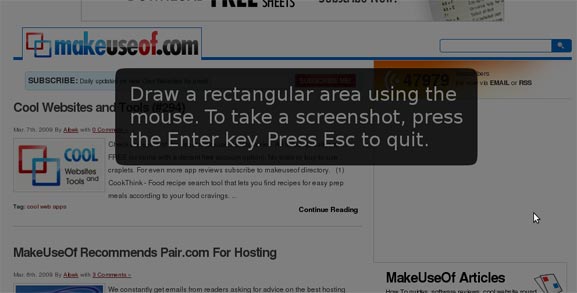
It's a bit strange to take a screenshot of a screenshot tool - so here's a link to the shutter website instead along with a suitable screenshot.
Shutter is a new app for Ubuntu and it's the best tool yet in terms of being able to select the section of screen that I want to grab - and it can be downloaded here
It's a bit strange to take a screenshot of a screenshot tool - so here's a link to the shutter website instead along with a suitable screenshot.
Monday, January 12, 2009
Charging a blackberry on Ubuntu - barry
My Blackberry Curve is pretty handy - but it wasn't charging from the USB on the Thinkpad running Ubuntu.
I installed "barry" from here and ran the "bcharge" command from the command line which reportedly ups the USB from 100ma to 400ma.
The Curve seems to be charging now ! lovely.
All thanks to the dapper Martin Owens
I installed "barry" from here and ran the "bcharge" command from the command line which reportedly ups the USB from 100ma to 400ma.
The Curve seems to be charging now ! lovely.
All thanks to the dapper Martin Owens
Monday, November 17, 2008
Ubuntu 8.10 on my Thinkpad T60p - (Part 3 - External Monitors/Projectors)
Since the upgrade to 8.10 of Ubuntu from 8.04 I found that the ATI Catalyst Control Centre (ccc) had been removed from the Applications menu.
Looking at Synaptic I saw that there was a package called fglrx-amdcccle already installed. This is the control Centre - it had just been missing from the menu. After a little hunting I determined the Control Centre could be invoked by running the command "amdccle".
To Simplify this a little I created a menu item for the "ccc" by right clicking on the "Applications" menu, selecting "Edit Menus" and then "New Item" - and filling out the details as shown below.

The is the app you need to control external monitors working with the T60p.
Looking at Synaptic I saw that there was a package called fglrx-amdcccle already installed. This is the control Centre - it had just been missing from the menu. After a little hunting I determined the Control Centre could be invoked by running the command "amdccle".
To Simplify this a little I created a menu item for the "ccc" by right clicking on the "Applications" menu, selecting "Edit Menus" and then "New Item" - and filling out the details as shown below.

The is the app you need to control external monitors working with the T60p.
Thursday, November 13, 2008
Ubuntu 8.10 on my Thinkpad T60p - (Part 2 - Cool Effects )
Earlier this week there were a few updates for Ubuntu via Synaptic. As usual I let the system apply the updates in it's typical smooth manner, however this time there was a problem.
When I restarted the system the usual Compiz graphics would not work at all. The cube you can keep - but I ned those wobbly windows. I restarted the system and chose to boot an older version of the Kernel and found the Compiz graphics were working to an extent, I had the wobbly windows but no Cube effect.
I booted back to the latest kernel. Running "fglrxinfo" in a terminal windows gave the error "BadRequest (invalid request code or no such operation)".
As usual there are a few websites giving long and complicated solutions to this problem. I just ran EnvyNG on the command line... "envyng -t" and selected the option to "Uninstall the ATI driver", then chose the option to "Install the ATI driver".
After a reboot the "fglrxinfo" gives a more useful output...
john@monza:~$ fglrxinfo
display: :0.0 screen: 0
OpenGL vendor string: ATI Technologies Inc.
OpenGL renderer string: ATI MOBILITY FireGL V5200
OpenGL version string: 2.1.8087 FireGL Release
And now I have the cylinder effect going in conjunction with the cube.

Thanks go to Alberto for EnvyNG yet again.
When I restarted the system the usual Compiz graphics would not work at all. The cube you can keep - but I ned those wobbly windows. I restarted the system and chose to boot an older version of the Kernel and found the Compiz graphics were working to an extent, I had the wobbly windows but no Cube effect.
I booted back to the latest kernel. Running "fglrxinfo" in a terminal windows gave the error "BadRequest (invalid request code or no such operation)".
As usual there are a few websites giving long and complicated solutions to this problem. I just ran EnvyNG on the command line... "envyng -t" and selected the option to "Uninstall the ATI driver", then chose the option to "Install the ATI driver".
After a reboot the "fglrxinfo" gives a more useful output...
john@monza:~$ fglrxinfo
display: :0.0 screen: 0
OpenGL vendor string: ATI Technologies Inc.
OpenGL renderer string: ATI MOBILITY FireGL V5200
OpenGL version string: 2.1.8087 FireGL Release
And now I have the cylinder effect going in conjunction with the cube.

Thanks go to Alberto for EnvyNG yet again.
Thursday, November 06, 2008
Ubuntu 8.10 on my Thinkpad T60p - BADSIG anyone?
As the latest release of Ubuntu has been out for a little while now – I decided to upgrade my laptop OS from 8.04 to 8.10. Ubuntu has the really nice facility of upgrading the OS in place – just by clicking the upgrade button. It was really nice to use when I upgraded from 7.10 on another PC. This time there was a problem.
There were various errors including “BADSIG 40976EAF437D05B5” and “Hash Sum mismatch” on the various Ubuntu repositories. I tried a number of fixes found via Google, mostly to no avail. Eventually I found an article in a forum pointing to a proxy server caching issue.
The fix that worked for me was as follows.
I added the following two lines...
Acquire::http::No-Cache "true";
Acquire::http::Max-Age "0";
to the file /etc/apt/apt.conf.d/10broken_proxy. This file did not previously exist on my system – but is referenced if it exists (as I found out due to a typo :-) ).
And separately did this....
sudo cp /etc/apt/sources.list /etc/apt/sources.list_backup
sudo nano /etc/apt/sources.list (then delete all the contents)
sudo apt-get update
Then replace the empty sources.list with the sources.list_backup – effectively putting all the original contents back into the sources.list file.
Run "sudo apt-get update” again.
My system could access the repositories perfectly. Finally I upgraded the system by running “Sudo do-release-upgrade -m desktop”.
All went well and now Ubuntu is running version 8.10.
Thanks to Asiyu on the Ubuntu forums
There were various errors including “BADSIG 40976EAF437D05B5” and “Hash Sum mismatch” on the various Ubuntu repositories. I tried a number of fixes found via Google, mostly to no avail. Eventually I found an article in a forum pointing to a proxy server caching issue.
The fix that worked for me was as follows.
I added the following two lines...
Acquire::http::No-Cache "true";
Acquire::http::Max-Age "0";
to the file /etc/apt/apt.conf.d/10broken_proxy. This file did not previously exist on my system – but is referenced if it exists (as I found out due to a typo :-) ).
And separately did this....
sudo cp /etc/apt/sources.list /etc/apt/sources.list_backup
sudo nano /etc/apt/sources.list (then delete all the contents)
sudo apt-get update
Then replace the empty sources.list with the sources.list_backup – effectively putting all the original contents back into the sources.list file.
Run "sudo apt-get update” again.
My system could access the repositories perfectly. Finally I upgraded the system by running “Sudo do-release-upgrade -m desktop”.
All went well and now Ubuntu is running version 8.10.
Thanks to Asiyu on the Ubuntu forums
Tuesday, September 02, 2008
Ubuntu 8.04 on my Thinkpad T60p (Part 6)
I already had Notes 8.5 beta 1 installed on Ubuntu 8.04 and wanted to upgrade to beta 2. As this is at beta stage there is apparently no upgrade from beta 1 to beta 2 so the first thing I did was backup my Notes data directory which was in /home/myname/lotus/notes/data.
Secondly I used Synaptic to remove “ibm-lotus-notes”.
Once this was successfully completed I closed Synaptic, opened a terminal window, and ran the following commands in this particular order...
sudo dpkg -i ibm_lotus_notes-8.5.i586.deb
sudo dpkg -i ibm_lotus_activities-8.5.i586.deb
sudo dpkg -i ibm_lotus_cae-8.5.i586.deb
sudo dpkg -i ibm_lotus_sametime-8.5.i586.deb
sudo dpkg -i ibm_lotus_symphony-8.5.i586.deb
I was then able to start Notes from the Applications menu - There was a license agreement to accept – otherwise straight in.
It is fast – really fast.
Thanks to Ray for the pointers.
Secondly I used Synaptic to remove “ibm-lotus-notes”.
Once this was successfully completed I closed Synaptic, opened a terminal window, and ran the following commands in this particular order...
sudo dpkg -i ibm_lotus_notes-8.5.i586.deb
sudo dpkg -i ibm_lotus_activities-8.5.i586.deb
sudo dpkg -i ibm_lotus_cae-8.5.i586.deb
sudo dpkg -i ibm_lotus_sametime-8.5.i586.deb
sudo dpkg -i ibm_lotus_symphony-8.5.i586.deb
I was then able to start Notes from the Applications menu - There was a license agreement to accept – otherwise straight in.
It is fast – really fast.
Thanks to Ray for the pointers.
Thursday, July 24, 2008
Ubuntu 8.04 on my Thinkpad T60p (Part 5)
Today there was a kernel update for Ubuntu. After the update installed I continued to work for a few hours before shutting the laptop down even though the update recommended a restart for the changes to take effect.
Later I started the laptop to check something online - only to get the "White Screen" problem. The symptom is that I could login as normal however when the desktop loads you can only see a white cursor on a white background, luckily the cursor has a dark outline :). The Compiz "Cube" effect still works.
The online howto documents all seemed to go deep into the command line to reconfigure the X Windows system. Some advice given was to update the ATI drivers or reconfigure ATI via the "aticonfig" command.
Then I remembered the EnvyNG program that I used to install the ATI drivers in the first place. I logged in to Ubuntu and chose to use the "Gnome FailSafe" desktop. Actually the FailSafe Desktop was rather nice - basically my full desktop at full resolution without the funky Compiz effects. Then I ran the "EnvyNG" program and chose the option to "install the ATI driver".
 After this had completed I rebooted and found the system safe and well - all fixed and the funky effects are back - even though I don't use the cube effect that much at all but life would be poorer without the wobbly windows.
Later I started the laptop to check something online - only to get the "White Screen" problem. The symptom is that I could login as normal however when the desktop loads you can only see a white cursor on a white background, luckily the cursor has a dark outline :). The Compiz "Cube" effect still works.
The online howto documents all seemed to go deep into the command line to reconfigure the X Windows system. Some advice given was to update the ATI drivers or reconfigure ATI via the "aticonfig" command.
Then I remembered the EnvyNG program that I used to install the ATI drivers in the first place. I logged in to Ubuntu and chose to use the "Gnome FailSafe" desktop. Actually the FailSafe Desktop was rather nice - basically my full desktop at full resolution without the funky Compiz effects. Then I ran the "EnvyNG" program and chose the option to "install the ATI driver".
 After this had completed I rebooted and found the system safe and well - all fixed and the funky effects are back - even though I don't use the cube effect that much at all but life would be poorer without the wobbly windows.
Subscribe to:
Posts (Atom)