I had been having quite a few issues with my Notes client. Whether I was writing an email, editing a document or typing in a Sametime message the client would intermittently stop doing anything visibly, then would go grey coloured, and the Title bar at the top would show "IBM Lotus Notes (Not Responding)". After half a minute or so Notes would start responding again and perform fine, however after a few minutes I would get a repeat performance.
Apparently this can be put down to operating on a poor or slow network, going into offline mode could fix it, however it had been working without any real issue for a few months.
After taking advice from David Fry, from the Lotus Staines office, I installed 'Fix Pack 1' for 8.5.2. and all appears to be well thankfully. it's nice to have things working well again.
Showing posts with label notes8. Show all posts
Showing posts with label notes8. Show all posts
Thursday, March 24, 2011


Thursday, September 17, 2009
Searching Domino - a little Omnifind integration
I worked with an IBM Business Partner today to setup the integration between Domino 8.5 and Omnifind Enterprise Edition - also version 8.5 coincidentally.
Ominfind was already setup and working on multiple sources of information - Domino was simply an additional source to crawl. The integration with Domino can be over NRPC (requiring Domino libraries to be available to the Omnifind crawler), or via NDIIOP.
While reading the documentation (rtfm - we actually did it) We enabled DIIOP, setup the Omnifing Crawler for "notes" and were able to search and retrieve results. All in about 20 minutes. You could choose to search all nsf, individual nsf, data directories and individual notes views restricted by a simple selection formula.
We also installed the Notes plugin to place Omnifind in the Lotus Notes search bar - this also required editing to notes.ini to point to the Omnifind server. The end result was a fully integrated search across all the available datasources in the lab - with results available in the notes client.
My only question would be the relative performance of the DIIOP method as opposed to NRPC where a customer has a large amount of data to crawl.
The integration was smooth and really quite easy.
Ominfind was already setup and working on multiple sources of information - Domino was simply an additional source to crawl. The integration with Domino can be over NRPC (requiring Domino libraries to be available to the Omnifind crawler), or via NDIIOP.
While reading the documentation (rtfm - we actually did it) We enabled DIIOP, setup the Omnifing Crawler for "notes" and were able to search and retrieve results. All in about 20 minutes. You could choose to search all nsf, individual nsf, data directories and individual notes views restricted by a simple selection formula.
We also installed the Notes plugin to place Omnifind in the Lotus Notes search bar - this also required editing to notes.ini to point to the Omnifind server. The end result was a fully integrated search across all the available datasources in the lab - with results available in the notes client.
My only question would be the relative performance of the DIIOP method as opposed to NRPC where a customer has a large amount of data to crawl.
The integration was smooth and really quite easy.
Monday, March 16, 2009
Notes 8.5.1 on Ubuntu - composite applications
We had a recent update to the latest build on Lotus Notes 8.5.1 on Ubuntu. As usual the update appeared to go perfectly.
One of the new capabilities I had looked forward to was the inclusion of the Composite Application Editor (cae). The synaptic package name was "ibm-notes-cae".
When I created a new Composite application - I was given the instruction to use the ..."'Actions > Edit application' menu item to add content." Alas the "Actions" menu was not visible. First I tried removing the ibm-notes-cae package and reinstalling it, however this had no effect.
Ray Davies suggested I shut down Notes and rename the "workspace" directory within the notes/data directory and restarting the Notes Client. After a restart the "Actions" menu appeared and I could edit the composite app.
I did have to recreate the previous widgets I had been using - but that was not such a big deal - and I was back to work in five minutes flat.
Which was nice :-)
One of the new capabilities I had looked forward to was the inclusion of the Composite Application Editor (cae). The synaptic package name was "ibm-notes-cae".
When I created a new Composite application - I was given the instruction to use the ..."'Actions > Edit application' menu item to add content." Alas the "Actions" menu was not visible. First I tried removing the ibm-notes-cae package and reinstalling it, however this had no effect.
Ray Davies suggested I shut down Notes and rename the "workspace" directory within the notes/data directory and restarting the Notes Client. After a restart the "Actions" menu appeared and I could edit the composite app.
I did have to recreate the previous widgets I had been using - but that was not such a big deal - and I was back to work in five minutes flat.
Which was nice :-)
Sunday, January 11, 2009
Reply to all email storm - don't blame the users
I always thought that reply to all was a bad idea as a default, It's nice that it is no longer the default in Notes, however this story does take it a little further.
An email storm has been created, apparently, by too many people doing "reply to all". However the resolution seems to be to blame the users of the system and ask that they be disciplined for clicking "reply to all" when using large distribution lists.
Maybe they are missing a point and should upgrade to Notes 8.5 :-)
An email storm has been created, apparently, by too many people doing "reply to all". However the resolution seems to be to blame the users of the system and ask that they be disciplined for clicking "reply to all" when using large distribution lists.
Maybe they are missing a point and should upgrade to Notes 8.5 :-)
Tuesday, December 23, 2008
Mobile and not so mobile access to Domino apps
I was recently checking out the IdeaJam website and really liked the work that Bruce and Matt having been doing there. Matts use of xPages has resulted in a very functional yet modern looking web application that just happens to be built on Domino.
Matt has recently been working with the Hursley team on the xPages workshop - so he knows a thing or two about the subject.
I noticed that there was a url to access IdeaJam via the iPhone. Take the time to have a look as it's a lovely piece of work. Bruce informed me that this was based on work by Jeff Gilfelt - with instructions on how to do it here.
This should make it easy to give iPhone users access to Domino data - at least to view it, however it also shows up really well as a widget in the notes 8.5 sidebar, (which is nice).

Matt has recently been working with the Hursley team on the xPages workshop - so he knows a thing or two about the subject.
I noticed that there was a url to access IdeaJam via the iPhone. Take the time to have a look as it's a lovely piece of work. Bruce informed me that this was based on work by Jeff Gilfelt - with instructions on how to do it here.
This should make it easy to give iPhone users access to Domino data - at least to view it, however it also shows up really well as a widget in the notes 8.5 sidebar, (which is nice).

Tuesday, October 28, 2008
XPages workshop in the UK
The Hursley team are working on a XPages workshop in Hursley. If you work for an Lotus BP I would seriously suggest registering for this one.
XPages
There is one seriously good (external to IBM) consultant working on the content.
XPages
There is one seriously good (external to IBM) consultant working on the content.
Tuesday, October 21, 2008
email - keep it short
On any given morning I receive quite a number of emails that, on the face of it, require some attention.
I prefer to actually get on with doing my day job as opposed to attending to an email inbox as my boss appears to want me to actually achieve certain things for the business rather than simply work in a glorified mail room - the inbox. Luis Suarez is a good example in that he has actively stopped (that can not be good grammar) reading his email - I don't believe that course of action is likely to work for me just yet.
I keep my "email time" to a minimum using a few tricks such as using Notes to highlight mail sent to me only and colour coding mail that comes from customers or management. This works pretty well.
One of the biggest factors on how much value an email has is the content - and how it is written.
One of my management team tends to analyse things for a while and send out the odd blockbuster email which starts of with a paragraph of "scene setting" for the rest of his email which will be the equivalent content to a couple of sides of paper. When I was unaware of a request he had made he stated it was in an email - which I then retrieved from an archive. After reading the email I told him that the first paragraph contained no real information and that having reached the end of it I had archived the email (luckily I hadn't deleted it) and missed the pertinent content.
Some longer emails, such as the one mentioned above, need to be written in the form of a news story with Title, Synopsis and then Detail (or something to that effect) where the synopsis gives me the pertinent detail pretty early on in the narrative.
Shorter email should be no more that a short paragraph.
Preferably email should be as short as a Status update in Twitter or Facebook.
You could, of course, just use the phone.
You will be pleased to know that the colleague concerned and I came to an arrangement - he writes his email as normal and I read them - he is after all a manager.
On a similar note - IBM are noting the same things here
I prefer to actually get on with doing my day job as opposed to attending to an email inbox as my boss appears to want me to actually achieve certain things for the business rather than simply work in a glorified mail room - the inbox. Luis Suarez is a good example in that he has actively stopped (that can not be good grammar) reading his email - I don't believe that course of action is likely to work for me just yet.
I keep my "email time" to a minimum using a few tricks such as using Notes to highlight mail sent to me only and colour coding mail that comes from customers or management. This works pretty well.
One of the biggest factors on how much value an email has is the content - and how it is written.
One of my management team tends to analyse things for a while and send out the odd blockbuster email which starts of with a paragraph of "scene setting" for the rest of his email which will be the equivalent content to a couple of sides of paper. When I was unaware of a request he had made he stated it was in an email - which I then retrieved from an archive. After reading the email I told him that the first paragraph contained no real information and that having reached the end of it I had archived the email (luckily I hadn't deleted it) and missed the pertinent content.
Some longer emails, such as the one mentioned above, need to be written in the form of a news story with Title, Synopsis and then Detail (or something to that effect) where the synopsis gives me the pertinent detail pretty early on in the narrative.
Shorter email should be no more that a short paragraph.
Preferably email should be as short as a Status update in Twitter or Facebook.
You could, of course, just use the phone.
You will be pleased to know that the colleague concerned and I came to an arrangement - he writes his email as normal and I read them - he is after all a manager.
On a similar note - IBM are noting the same things here
Friday, September 12, 2008
Email becomes a dangerous distraction
The Sydney Morning Herald ran a story on the effects of email on a persons productivity and had this to say.
"In a study last year, Dr Thomas Jackson of Loughborough University, England, found that it takes an average of 64 seconds to recover your train of thought after interruption by email (bit.ly/email2). So people who check their email every five minutes waste 81/2hours a week figuring out what they were doing moments before."
There is more to life than email - but I do wonder about all those Twitter and IM interuptions. :)
drthomasjackson.com
The related study, at least I think it's the one, is here
"In a study last year, Dr Thomas Jackson of Loughborough University, England, found that it takes an average of 64 seconds to recover your train of thought after interruption by email (bit.ly/email2). So people who check their email every five minutes waste 81/2hours a week figuring out what they were doing moments before."
There is more to life than email - but I do wonder about all those Twitter and IM interuptions. :)
drthomasjackson.com
The related study, at least I think it's the one, is here
Tuesday, September 02, 2008
Ubuntu 8.04 on my Thinkpad T60p (Part 6)
I already had Notes 8.5 beta 1 installed on Ubuntu 8.04 and wanted to upgrade to beta 2. As this is at beta stage there is apparently no upgrade from beta 1 to beta 2 so the first thing I did was backup my Notes data directory which was in /home/myname/lotus/notes/data.
Secondly I used Synaptic to remove “ibm-lotus-notes”.
Once this was successfully completed I closed Synaptic, opened a terminal window, and ran the following commands in this particular order...
sudo dpkg -i ibm_lotus_notes-8.5.i586.deb
sudo dpkg -i ibm_lotus_activities-8.5.i586.deb
sudo dpkg -i ibm_lotus_cae-8.5.i586.deb
sudo dpkg -i ibm_lotus_sametime-8.5.i586.deb
sudo dpkg -i ibm_lotus_symphony-8.5.i586.deb
I was then able to start Notes from the Applications menu - There was a license agreement to accept – otherwise straight in.
It is fast – really fast.
Thanks to Ray for the pointers.
Secondly I used Synaptic to remove “ibm-lotus-notes”.
Once this was successfully completed I closed Synaptic, opened a terminal window, and ran the following commands in this particular order...
sudo dpkg -i ibm_lotus_notes-8.5.i586.deb
sudo dpkg -i ibm_lotus_activities-8.5.i586.deb
sudo dpkg -i ibm_lotus_cae-8.5.i586.deb
sudo dpkg -i ibm_lotus_sametime-8.5.i586.deb
sudo dpkg -i ibm_lotus_symphony-8.5.i586.deb
I was then able to start Notes from the Applications menu - There was a license agreement to accept – otherwise straight in.
It is fast – really fast.
Thanks to Ray for the pointers.
Tuesday, July 01, 2008
Installation of Lotus Foundations - Part 3
Foundations Start
Now that Foundations Core has been installed and is up and running it's time to install Foundations Start. This is the part of Foundations that includes the Domino email server.
From my Ubuntu client – I started Nautilus file browser, clicked on Network Servers and the system found the Foundations server. Windows Explorer should do the same (file - run - \\ipaddress).
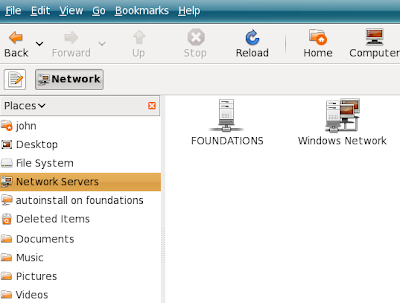
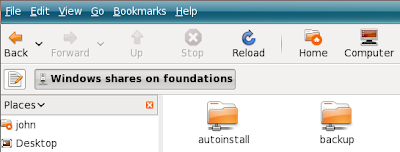
Opening the “Foundations” server required the “root” username and password. The shared folders included one called "autoinstall".
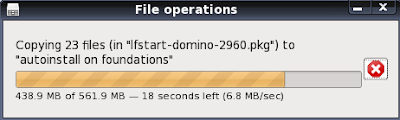
 Foundations start is supplied in a file called lfstart-domino-2960.pkg. Copy this file to the autoinstall directory on the Foundations Base server.
Once it has been copied click the "Software Update" menu to see when it is recognised.
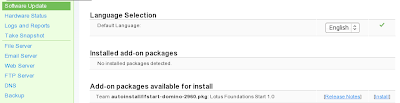
When you see the "Installed add-on package" is available you can click on "install". As this package contains a Domino server you should ensure you have sufficient ram allocated to the machine. When you have clicked "install" you should see the following message on the "Status" page.

 As the install progresses informational messages are displayed like the next screenshot.
 Eventually, after 10 minutes or so you should see.....
 So easy.
Now that Foundations Core has been installed and is up and running it's time to install Foundations Start. This is the part of Foundations that includes the Domino email server.
From my Ubuntu client – I started Nautilus file browser, clicked on Network Servers and the system found the Foundations server. Windows Explorer should do the same (file - run - \\ipaddress).

Opening the “Foundations” server required the “root” username and password. The shared folders included one called "autoinstall".
 Foundations start is supplied in a file called lfstart-domino-2960.pkg. Copy this file to the autoinstall directory on the Foundations Base server.
Once it has been copied click the "Software Update" menu to see when it is recognised.

When you see the "Installed add-on package" is available you can click on "install". As this package contains a Domino server you should ensure you have sufficient ram allocated to the machine. When you have clicked "install" you should see the following message on the "Status" page.

 As the install progresses informational messages are displayed like the next screenshot.
 Eventually, after 10 minutes or so you should see.....
 So easy.
Monday, June 30, 2008
Installation of Lotus Foundations - Part 2
Once you have logged in to Foundations as the root user you should see the "System Status" screen where you can make alterations to your system.
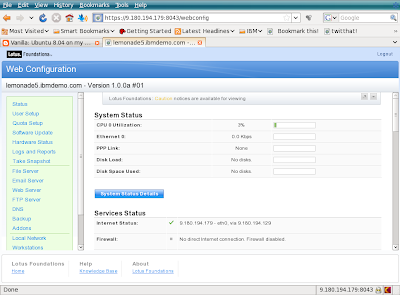
At this point the Foundations server is running entirely in memory as there are no Hard Disks available. Looking further through the “Services Status” in the screenshot above you will find the following detail.
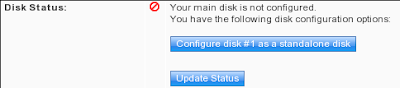
Click the "Configure disk #1 as a standalone disk" to format the hard disk and write the Foundations code to it. As this example was created in a VMware image there is no existant data to worry about - just make sure you don't overwrite something important.
Click the "Update Status" button to keep track of when the server has finished configuring the disk.
Once the “Update Status” shows that the disk is available – srcoll down to the bottom of the “Web Configuration” page and choose to “Shutdown” the server. Edit the settings for the VM image and set the DVD drive to be the physical drive, we don't want it to open the ISO image now that the Foundations server can boot fron the hard disk.
Restart the Vmware image and login as root.
At this point the foundations Core server has been installed. The Next step is to install “Foundations Start”.

At this point the Foundations server is running entirely in memory as there are no Hard Disks available. Looking further through the “Services Status” in the screenshot above you will find the following detail.

Click the "Configure disk #1 as a standalone disk" to format the hard disk and write the Foundations code to it. As this example was created in a VMware image there is no existant data to worry about - just make sure you don't overwrite something important.
Click the "Update Status" button to keep track of when the server has finished configuring the disk.
Once the “Update Status” shows that the disk is available – srcoll down to the bottom of the “Web Configuration” page and choose to “Shutdown” the server. Edit the settings for the VM image and set the DVD drive to be the physical drive, we don't want it to open the ISO image now that the Foundations server can boot fron the hard disk.
Restart the Vmware image and login as root.
At this point the foundations Core server has been installed. The Next step is to install “Foundations Start”.
Installation of Lotus Foundations - Part 1
Installation of Foundations into VMWare

From your host machine point firefox at https//9.180.19.179:8043. (your ipaddress will differ). You will likely have to add a security exception to add the x.509 certificate for the Foundations server to your browser. Then you should see the following screen, followed by a similar IBM Software Agreement screen.
I created a new VMware machine as a Suse Linux machine with 20GB HD. In the VM settings for the machine I set the DVD to point to the Foundations ISO file, "10_00a1.iso", as the CD drive.
When the Virtual Machine starts the ISO file is loaded and boots Lotus Foundations into memory and displays the following screen.
From your host machine point firefox at https//9.180.19.179:8043. (your ipaddress will differ). You will likely have to add a security exception to add the x.509 certificate for the Foundations server to your browser. Then you should see the following screen, followed by a similar IBM Software Agreement screen.

Once the agreements have been accepted you will see the initial setup screen below.

Fill in a suitable password for the root user and enter your domain name. If you have an Activation Key – fill it in – otherwise the server will run in a time limited mode. Once you click “Save Changes” the root account is created and you are provided with a "Login" button.
Click to Login, and enter the username “root” and the pasword you created previously. You can then view and alter the system status and configuration in the next screen
Subscribe to:
Posts (Atom)