I had been having quite a few issues with my Notes client. Whether I was writing an email, editing a document or typing in a Sametime message the client would intermittently stop doing anything visibly, then would go grey coloured, and the Title bar at the top would show "IBM Lotus Notes (Not Responding)". After half a minute or so Notes would start responding again and perform fine, however after a few minutes I would get a repeat performance.
Apparently this can be put down to operating on a poor or slow network, going into offline mode could fix it, however it had been working without any real issue for a few months.
After taking advice from David Fry, from the Lotus Staines office, I installed 'Fix Pack 1' for 8.5.2. and all appears to be well thankfully. it's nice to have things working well again.
Showing posts with label ibm. Show all posts
Showing posts with label ibm. Show all posts
Thursday, March 24, 2011


Thursday, July 24, 2008
Ubuntu 8.04 on my Thinkpad T60p (Part 5)
Today there was a kernel update for Ubuntu. After the update installed I continued to work for a few hours before shutting the laptop down even though the update recommended a restart for the changes to take effect.
Later I started the laptop to check something online - only to get the "White Screen" problem. The symptom is that I could login as normal however when the desktop loads you can only see a white cursor on a white background, luckily the cursor has a dark outline :). The Compiz "Cube" effect still works.
The online howto documents all seemed to go deep into the command line to reconfigure the X Windows system. Some advice given was to update the ATI drivers or reconfigure ATI via the "aticonfig" command.
Then I remembered the EnvyNG program that I used to install the ATI drivers in the first place. I logged in to Ubuntu and chose to use the "Gnome FailSafe" desktop. Actually the FailSafe Desktop was rather nice - basically my full desktop at full resolution without the funky Compiz effects. Then I ran the "EnvyNG" program and chose the option to "install the ATI driver".
 After this had completed I rebooted and found the system safe and well - all fixed and the funky effects are back - even though I don't use the cube effect that much at all but life would be poorer without the wobbly windows.
Later I started the laptop to check something online - only to get the "White Screen" problem. The symptom is that I could login as normal however when the desktop loads you can only see a white cursor on a white background, luckily the cursor has a dark outline :). The Compiz "Cube" effect still works.
The online howto documents all seemed to go deep into the command line to reconfigure the X Windows system. Some advice given was to update the ATI drivers or reconfigure ATI via the "aticonfig" command.
Then I remembered the EnvyNG program that I used to install the ATI drivers in the first place. I logged in to Ubuntu and chose to use the "Gnome FailSafe" desktop. Actually the FailSafe Desktop was rather nice - basically my full desktop at full resolution without the funky Compiz effects. Then I ran the "EnvyNG" program and chose the option to "install the ATI driver".
 After this had completed I rebooted and found the system safe and well - all fixed and the funky effects are back - even though I don't use the cube effect that much at all but life would be poorer without the wobbly windows.
Demonstrating Lotus Sametime
When demonstrating Lotus Sametime I like to show dialogue between real people logged into the system. When a network connection is not available this can get a little tricky.
Mikkel Heisterberg has published a tool via Intravision that allows you to simulate people logged into Sametime in various states such as Avalable, In a Meeting, etc.
I've used similar tools in the past that people have hacked together - however this looks like a really nice solution.
Now, if I just had a little Sametime "bot" that could give answers to questions.
Mikkel Heisterberg has published a tool via Intravision that allows you to simulate people logged into Sametime in various states such as Avalable, In a Meeting, etc.
I've used similar tools in the past that people have hacked together - however this looks like a really nice solution.
Now, if I just had a little Sametime "bot" that could give answers to questions.
Tuesday, July 01, 2008
Installation of Lotus Foundations - Part 3
Foundations Start
Now that Foundations Core has been installed and is up and running it's time to install Foundations Start. This is the part of Foundations that includes the Domino email server.
From my Ubuntu client – I started Nautilus file browser, clicked on Network Servers and the system found the Foundations server. Windows Explorer should do the same (file - run - \\ipaddress).
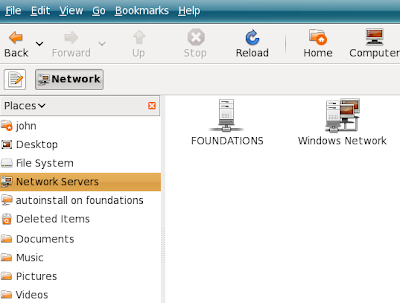
Opening the “Foundations” server required the “root” username and password. The shared folders included one called "autoinstall".
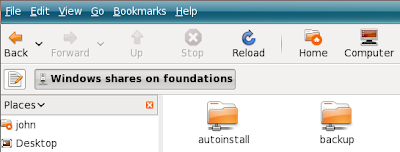 Foundations start is supplied in a file called lfstart-domino-2960.pkg. Copy this file to the autoinstall directory on the Foundations Base server.
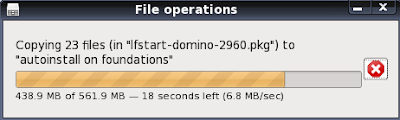
Once it has been copied click the "Software Update" menu to see when it is recognised.
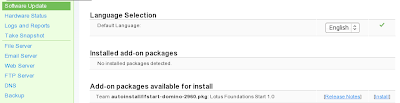
When you see the "Installed add-on package" is available you can click on "install". As this package contains a Domino server you should ensure you have sufficient ram allocated to the machine. When you have clicked "install" you should see the following message on the "Status" page.

 As the install progresses informational messages are displayed like the next screenshot.
 Eventually, after 10 minutes or so you should see.....
 So easy.
Now that Foundations Core has been installed and is up and running it's time to install Foundations Start. This is the part of Foundations that includes the Domino email server.
From my Ubuntu client – I started Nautilus file browser, clicked on Network Servers and the system found the Foundations server. Windows Explorer should do the same (file - run - \\ipaddress).

Opening the “Foundations” server required the “root” username and password. The shared folders included one called "autoinstall".
 Foundations start is supplied in a file called lfstart-domino-2960.pkg. Copy this file to the autoinstall directory on the Foundations Base server.
Once it has been copied click the "Software Update" menu to see when it is recognised.

When you see the "Installed add-on package" is available you can click on "install". As this package contains a Domino server you should ensure you have sufficient ram allocated to the machine. When you have clicked "install" you should see the following message on the "Status" page.

 As the install progresses informational messages are displayed like the next screenshot.
 Eventually, after 10 minutes or so you should see.....
 So easy.
Monday, June 30, 2008
Installation of Lotus Foundations - Part 2
Once you have logged in to Foundations as the root user you should see the "System Status" screen where you can make alterations to your system.
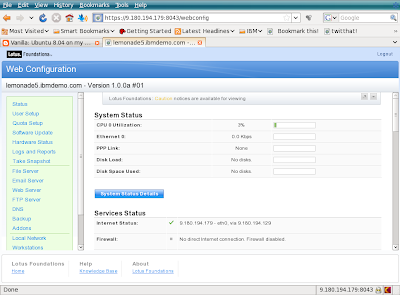
At this point the Foundations server is running entirely in memory as there are no Hard Disks available. Looking further through the “Services Status” in the screenshot above you will find the following detail.
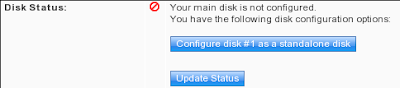
Click the "Configure disk #1 as a standalone disk" to format the hard disk and write the Foundations code to it. As this example was created in a VMware image there is no existant data to worry about - just make sure you don't overwrite something important.
Click the "Update Status" button to keep track of when the server has finished configuring the disk.
Once the “Update Status” shows that the disk is available – srcoll down to the bottom of the “Web Configuration” page and choose to “Shutdown” the server. Edit the settings for the VM image and set the DVD drive to be the physical drive, we don't want it to open the ISO image now that the Foundations server can boot fron the hard disk.
Restart the Vmware image and login as root.
At this point the foundations Core server has been installed. The Next step is to install “Foundations Start”.

At this point the Foundations server is running entirely in memory as there are no Hard Disks available. Looking further through the “Services Status” in the screenshot above you will find the following detail.

Click the "Configure disk #1 as a standalone disk" to format the hard disk and write the Foundations code to it. As this example was created in a VMware image there is no existant data to worry about - just make sure you don't overwrite something important.
Click the "Update Status" button to keep track of when the server has finished configuring the disk.
Once the “Update Status” shows that the disk is available – srcoll down to the bottom of the “Web Configuration” page and choose to “Shutdown” the server. Edit the settings for the VM image and set the DVD drive to be the physical drive, we don't want it to open the ISO image now that the Foundations server can boot fron the hard disk.
Restart the Vmware image and login as root.
At this point the foundations Core server has been installed. The Next step is to install “Foundations Start”.
Installation of Lotus Foundations - Part 1
Installation of Foundations into VMWare

From your host machine point firefox at https//9.180.19.179:8043. (your ipaddress will differ). You will likely have to add a security exception to add the x.509 certificate for the Foundations server to your browser. Then you should see the following screen, followed by a similar IBM Software Agreement screen.
I created a new VMware machine as a Suse Linux machine with 20GB HD. In the VM settings for the machine I set the DVD to point to the Foundations ISO file, "10_00a1.iso", as the CD drive.
When the Virtual Machine starts the ISO file is loaded and boots Lotus Foundations into memory and displays the following screen.
From your host machine point firefox at https//9.180.19.179:8043. (your ipaddress will differ). You will likely have to add a security exception to add the x.509 certificate for the Foundations server to your browser. Then you should see the following screen, followed by a similar IBM Software Agreement screen.

Once the agreements have been accepted you will see the initial setup screen below.

Fill in a suitable password for the root user and enter your domain name. If you have an Activation Key – fill it in – otherwise the server will run in a time limited mode. Once you click “Save Changes” the root account is created and you are provided with a "Login" button.
Click to Login, and enter the username “root” and the pasword you created previously. You can then view and alter the system status and configuration in the next screen
Subscribe to:
Posts (Atom)